
How Do You Check SSD Health, and What Do the Warnings Mean?
Free Checks in Two Minutes. What Good, Caution and Bad Really Mean.
You can check SSD health for free in about two minutes. Windows 11 shows it for NVMe drives, CrystalDiskInfo shows it for most drives, and a Mac shows a SMART status. Good means keep your backup current. Caution means copy your files today. Bad means copy only what matters most, then stop.
The two-minute check
How Do I Check SSD Health for Free?
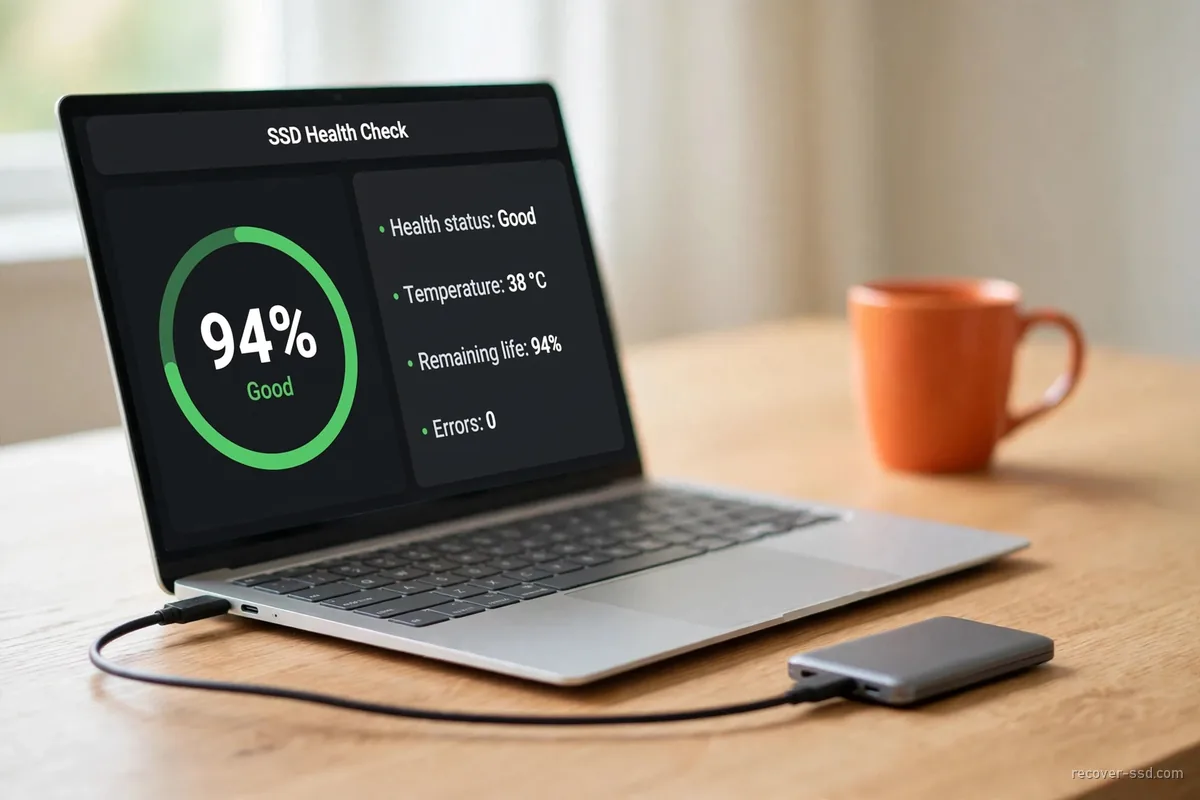
Use the tool your computer already has, or one free program. None of these checks writes anything. They only read the health report that the SSD keeps about itself, which is why a check is safe even on an SSD you are already worried about.
 See it bigger
Every modern SSD keeps a self-report called SMART, and it holds the maker's own estimate of wear, the count of spare blocks, the temperature and the error counters. A health checker reads that report and turns it into a word or a percentage. Pick your method. Each one shows you how to check SSD health without buying anything.
Windows 11, NVMe drive
Open Settings, then System, Storage, Advanced storage settings, and Disks & volumes. Select the SSD and click Properties. Under Drive health you see the estimated remaining life, the available spare, and the temperature. This page is built for NVMe SSDs. Microsoft added it so that Windows can warn you early, and its announcement of storage health monitoring tells users to back up at once when a warning appears. A SATA SSD usually shows nothing on this page, which does not mean it is healthy or unhealthy, only that Windows is not reading its report there, so use the next method for it.
Any Windows drive: CrystalDiskInfo or the maker's tool
CrystalDiskInfo is free. It reads SATA and NVMe SSDs and shows one word, Good, Caution, Bad or Unknown, with a percentage beside it, which makes it the quickest SSD health check on Windows. The maker's own tool reads the same report and can also install firmware: Samsung Magician, Crucial Storage Executive, WD Dashboard, Kingston SSD Manager and others. If you prefer no download, open PowerShell and run Get-PhysicalDisk | Get-StorageReliabilityCounter | Select Wear, Temperature, ReadErrorsTotal. A wear value above zero is normal. Read errors that keep climbing from one check to the next are not normal, and they are worth more of your attention than any single percentage on the screen.
Mac
Hold the Option key, open the Apple menu, and choose System Information. Under Storage, NVMExpress or SATA, find the line S.M.A.R.T. status. Verified is good. Failing is not. Copy your files now. Do not run First Aid in Disk Utility on an SSD that reports Failing. First Aid exists to repair the file system, and every repair writes.
External or portable SSD
Many USB enclosures and adapters do not pass the health report through to the computer, so the checker shows Unknown, a blank box, or the adapter's own name instead of the SSD inside it. That says nothing about the SSD itself. Try the maker's tool first, because most portable SSDs are made to report through it, and it often shows the health number, the firmware version and the total writes on one screen that a general checker cannot reach through the adapter. The free smartctl program can read many USB bridges, and its authors keep a public list of the bridges that report health. If the external SSD does not appear at all, no check can run. Start instead with an SSD that no longer shows up.
Read your result
What Does My SSD Health Status Mean?
Find your status in the table. The health word tells you how worried to be. The trend tells you how fast to move. A drive at 70 percent that has not moved in a year is safer than a drive at 95 percent that lost five points last month.
| What the checker shows | What it means | How urgent | What to do now | Stop and send it in when |
|---|---|---|---|---|
| Good, number steady | Normal wear. No errors reported. | None | Keep one backup on another drive. Check again in a few months. | Not needed |
| Good, number falling fast | Wear or spare use is speeding up | Medium | Back up now. Then look for a firmware update from the maker. | The drive slows, freezes or throws copy errors |
| Caution, from low remaining life | Most of the rated wear is used | Medium to high | Copy your files this week. Plan a replacement. | Copies fail or the drive turns read-only |
| Caution, from error counters | Blocks are failing or waiting to be remapped | High | Copy your most important files today, to a different drive | Any copy error, or the counters keep rising |
| Bad | It passed its own failure limit | Very high | Copy only what matters most, once, then power it off | Any error during that one copy |
| Critical warning, or “may be at risk of failure” | The NVMe SSD raised its own alarm flag | Very high | Back up at once. Do not install updates or run repairs first. | It turns read-only or drops off |
| Unknown, or no health shown | The checker cannot read the report, often through USB | Not known yet | Try the maker's tool or another connection | It also misbehaves in use |
No row on this table means your files are lost, and even an SSD marked Bad usually still reads. What the table tells you is how much time you have. Use that time to copy, not to test. If the drive has already turned read-only, shows RAW or reports the wrong size, it is corrupted rather than worn, so read our guide to a corrupted, read-only or RAW SSD first.
The yellow warning
What Does CrystalDiskInfo “Caution” Mean on an SSD?
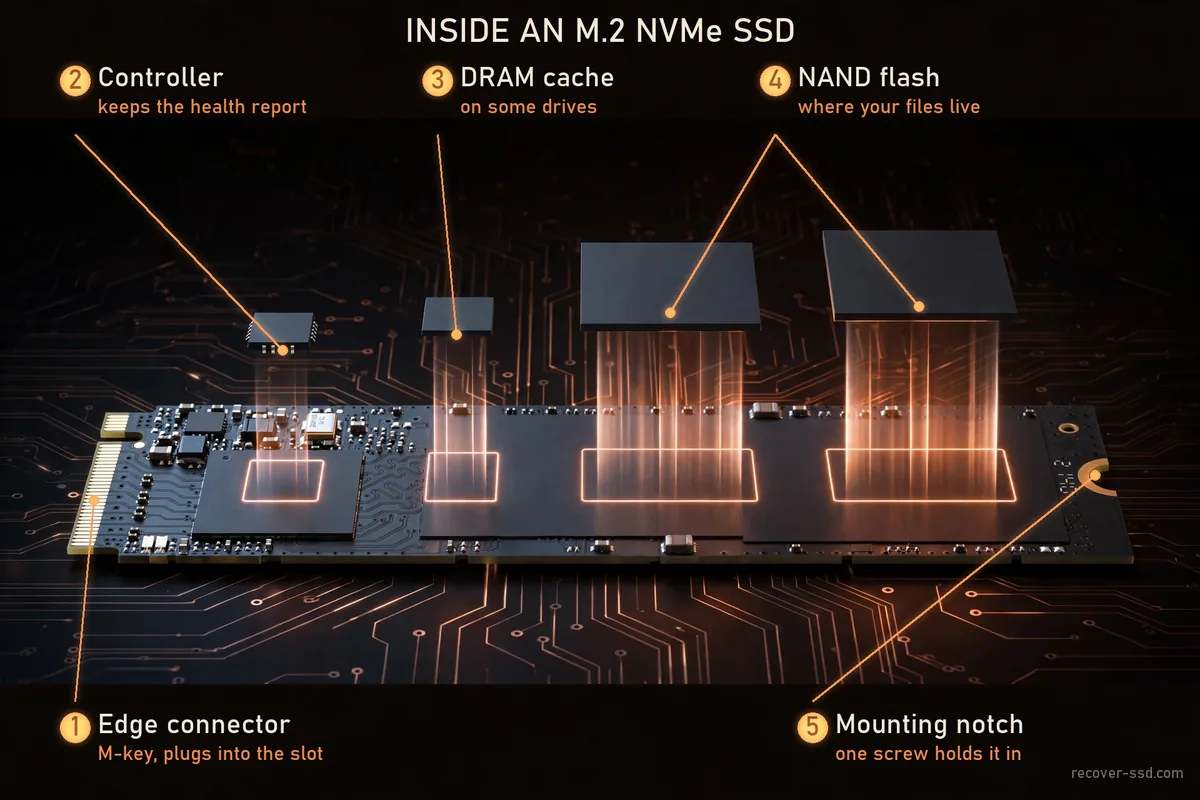
Caution has two causes, and they mean different things. One is low remaining life, which is slow, planned wear. The other is a rise in the error counters, which means blocks are failing now. Check which one you have before you decide how fast to act.
 See it bigger
The program's authors publish the rules behind the label. For most SSDs, CrystalDiskInfo shows Caution when remaining life reaches 10 percent or less, and Bad when it falls below a limit set by the maker. It also shows Caution when the reallocated, pending or uncorrectable counters pass their threshold. Both rules are on its health status page.
To see which cause you have, look at the long attribute list under the health box, where each line has an ID, a name, a current value, a worst value, a threshold and a raw count. If the life or wear line is low and every error counter reads zero, the SSD is simply old. You have time. Use it. But if any of these lines is above zero, the SSD is failing in use, and the clock is running:
- 05, Reallocated Sectors Count. Blocks that failed and were replaced from the spare pool.
- C5, Current Pending Sector Count. Blocks the drive could not read and is still waiting to replace.
- C6, Uncorrectable Sector Count. Data the drive could not correct when it read it.
- Media and Data Integrity Errors on an NVMe drive. The same idea, counted in one line.
A single reallocated block on an old SSD may never grow. A pending or uncorrectable count that rises week after week is different, because that is the SSD telling you, as plainly as it can, that it is losing data. Copy first. Watch it after.
The NVMe alarm
What Does an NVMe “Critical Warning” Mean?
It is a flag the SSD raises about itself. It means one of five things went wrong: spare blocks ran low, the drive got too hot, errors reduced its reliability, it switched to read-only, or its power-loss backup failed. Any flag other than temperature means back up now.
The Critical Warning field is part of the health log defined in the NVM Express specification. Tools show it as a number or a list of flags. Zero means no warning. Any other value means at least one flag is set, and Windows turns those same flags into the notice that a storage device may be at risk of failure. Here is what each flag means for you:
- Available spare below threshold. Most replacement blocks are used up. More failures will have nowhere to go.
- Temperature. It is too hot or too cold. Check airflow and the heatsink first. This flag alone does not mean damage, but a laptop or a games console that runs its SSD hot for hours every day will wear it faster and should get a heatsink or better airflow.
- Reliability degraded. Media or internal errors are now high enough that the SSD no longer trusts its own data.
- Read-only. It has stopped accepting writes to protect what it holds. Copy your files off. Do not try to force writes back on.
- Volatile memory backup failed. The circuit that saves data in flight during a power cut has failed. A sudden power loss can now corrupt recent writes. Keep it on a steady supply.
The health number
Is 80 Percent SSD Health Good, and When Should I Replace It?
Yes, 80 percent is fine if it is falling slowly. The number is the SSD's own guess at how much of its rated wear is left. Plan a replacement as it nears 10 percent, or sooner if it drops several points in a few weeks. Back up before either.
The health percentage counts down from 100 as the flash cells wear. On NVMe drives the raw value behind it is called Percentage Used, and it counts up instead. It can pass 100, because the maker's rating is an estimate, not a cliff. An SSD does not stop at 0 percent remaining life, and one at 100 percent can still fail suddenly from a controller or power fault. So treat the number as a fuel gauge for wear, not as a promise. It tells you roughly how far the cells have travelled, and it says nothing at all about the electronics that can fail on any day.
What matters more is the speed of change. Write the number down each time you check, with the date, because two readings a month apart show you the speed of change, and a single reading never can. A slow, steady fall is normal wear. A few points a week is not, and it can also come from a firmware fault rather than real wear. Some makers have shipped firmware updates that fixed exactly that. Back up first. Then update.
Replacement drives cost far more in 2026 than they did in 2025. A falling health number is always a reason to back up. It is not always a reason to buy a new drive today.
Beyond the number
What Are the Signs of a Failing SSD?
The health number is only one sign. Others are files that will not open or copy, freezes when you open large files, the drive vanishing and returning, sudden read-only errors, and a computer that will not boot from it. Two of these together mean act now.
An SSD can fail without warning. Its controller, its firmware and its power circuit can all fail suddenly, with no slow wear first, which is why an SSD can report Good on Monday and stop on Tuesday. These are the signs to take seriously:
- Copy errors or files that will not open. Some blocks no longer read.
- Freezes on large files. The SSD is retrying reads it cannot finish.
- The SSD disappears and comes back. Often a controller or power fault.
- “Write protected” or read-only errors. It locked itself to protect its data.
- Boot failures or repeated disk checks at start-up. The file system or the SSD is damaged.
- A health number that drops quickly, or error counters that rise.
Heat, a drop or a spill can cause the same signs. If one of those happened first, read about heat or water damage before you power it again.
How long they last
How Long Does an SSD Last?
Most SSDs last for years of normal use. Each one has a rated amount of writes, printed on its data sheet as TBW, or terabytes written. Your health tool shows how much you have written so far. Compare the two numbers to see how much rated life you have left.
Writing causes wear. Reading barely does. An SSD that holds photos and is rarely written can outlive the computer it sits in, while one that records video all day uses its rating far faster. Heat, an SSD kept nearly full, and repeated power loss add stress too. Total host writes appear in CrystalDiskInfo and in the maker's tool, usually in gigabytes or terabytes, and you can set that figure beside the TBW rating to see how much of the rated life you have used.
Do not use an SSD as a shelf archive. Flash holds its charge best when the SSD gets power now and then. The JEDEC endurance standard (JESD218) asks a client SSD at the end of its rated life to keep data for one year powered off at 30°C. A drawer is not a backup plan.
The evaluation is free, and there is no obligation.
Protect your files
My SSD Health Says Bad or Is Dropping. What Do I Do Right Now?
Copy your most important files to a different drive, today, in one pass. Copy the files you cannot replace first, then everything else. Do not run repairs, scans, speed tests or firmware updates before the copy is done. Each one adds work for an SSD that is running out of time.
 See it bigger
- Stop using the SSD for anything else. Close programs that write to it, such as downloads, games and sync tools.
- Copy the files you cannot replace first. Photos, documents and work files. Then copy the rest, if it allows.
- Copy to a different physical drive. A second partition on the same SSD is not a backup, because both parts live on the same chips behind the same controller, and when that controller fails it takes every partition with it at once.
- Do not run CHKDSK, a surface scan or a benchmark. A repair writes, and a scan or a speed test makes a weak SSD work hard for nothing.
- Update firmware only after the copy. An update that fails halfway can stop a weak SSD from starting again.
- Keep the drive cool and powered steadily until the copy ends.
When the copy finishes, check the new copy before you trust it. Open a sample of files from each folder, including a few large videos or archives, because a copy that finished without an error message can still hold files that will not open. Then replace the SSD, or keep it only for data you can afford to lose. If you are deciding between a repair and a new drive, read what SSD repair can still do.
When copying fails
What If the Copy Fails or the Drive Vanishes Mid-Copy?
Stop, and power it off. Do not keep restarting it to try again. An SSD that drops out during a copy is close to its limit, and each new attempt can cost more of what is left. A free evaluation shows what is still readable before you pay anything.
Files you already copied are safe. Write down which folders made it across, so that nobody has to read those again from a drive that may only have a few good hours left in it. Do not format it, initialize it, or let a program repair it, because each of those steps writes new data over the map the SSD uses to find your files.
We work only on SSDs. You see the list of recovered files before you pay anything at all. If no data comes back, you pay no recovery fee. No Data Recovered, No Data Recovery Fee.
| Service level | Turnaround | Price |
|---|---|---|
| Standard | 3-5 days | Under $450 |
| Priority | 2-4 days | Quoted After Evaluation |
| Emergency | 1-3 days | Quoted + $495 rush fee |
The $495 rush fee moves your SSD to the front of the queue. It does not guarantee a result. Every service level, turnaround and fee for a failed SSD is on our page about what it costs to get files off, published before you send anything.
Quick answers
SSD Health Questions
Can SSD health be restored?
No. Worn flash cells cannot be made new, so real wear never goes back up. A number that jumps up after a firmware update was a wrong reading that the update corrected. A secure erase can make a slow drive feel fast again, but it deletes everything and does not restore health.
Can I trust CrystalDiskInfo?
You can trust it to report what the drive says. The percentage is the maker's own estimate, read straight from the SSD. CrystalDiskInfo adds its own labels on top. Treat the error counters as facts and the percentage as a forecast.
Does checking SSD health harm the drive?
No. A health check only reads the SSD's self-report. It does not write anything. A speed test is different. Benchmarks write large test files, so skip them on an SSD that is already failing.
Is an SSD health check the same as an SSD speed test?
No. A health check reads wear, spare blocks and errors. A speed test measures how fast it reads and writes. A slow SSD can be healthy, and a fast one can be close to failure. Use the health check to judge risk.
How often should I check SSD health?
Every few months is enough for a healthy SSD that has shown the same number since you bought it. Check weekly once you see Caution or a falling number, and write each result down with the date. The trend between checks tells you more than any single reading.
My SSD shows 100 percent health. Are my files safe?
Not fully. The health number tracks wear only. An SSD can also fail from an electronic fault that gives no warning, so a drive at 100 percent can still stop working. Keep one current backup on a different drive, whatever the number says. That backup is the only health check that never lies.
Not sure yet? Just ask.
Tell us what the drive is doing and we’ll tell you straight whether it’s worth recovering — no charge, no sales call, usually the same day.